

Give every integration its own API key
Your OneText account can now hold up to 10 named API keys. Name each one, rotate or delete it on its own, and always know which integration a key belongs to.

If you connect OneText to more than one system, you've probably wished each one could have its own key. Now it can.
Until now, your account had a single API key, and every integration you built shared it. That worked, but it made a few everyday things harder than they should be. There was no way to tell which system was using the key. Rotating it for one integration broke every other integration at the same moment. And revoking access for a single tool meant cutting off all of them at once.
One account, many keys
Your account can now hold up to 10 API keys, and you give each one a name. Call them whatever helps you keep track: the name of the service, the team that owns it, or the job it does. Each key sits in its own card with its account token and client token, ready to copy into the tool that needs it.
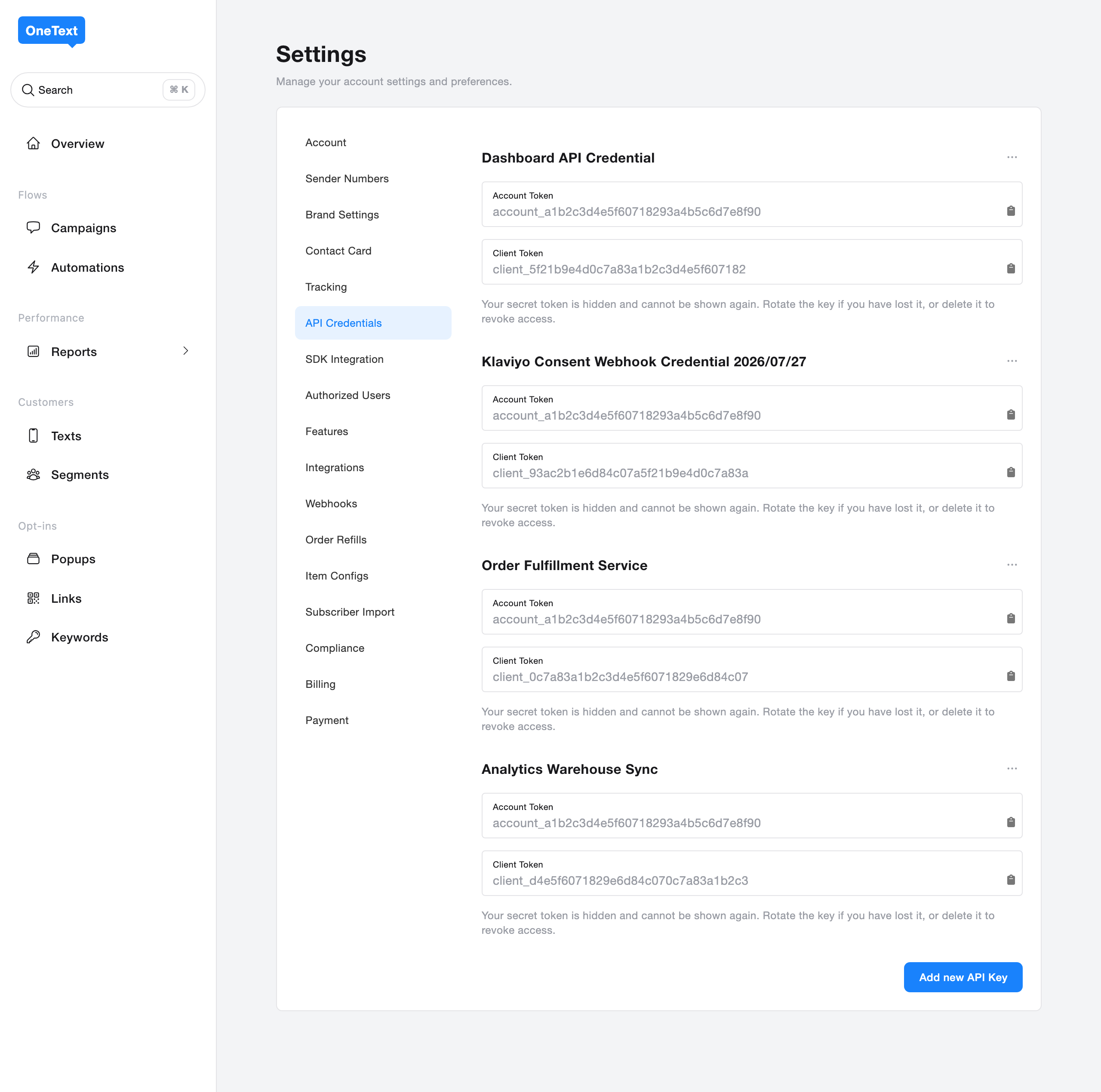
This is the whole point. Instead of one shared secret behind everything, you get a key per integration, and the list reads like a map of what's connected to your account.
Rotate or delete each one on its own
Every key has its own actions menu. Rotating a key issues a new secret for that key and leaves the rest untouched, so updating one integration no longer disturbs the others. Deleting a key revokes it for good. If a tool is retired or a secret leaks, you remove that one key and nothing else changes.
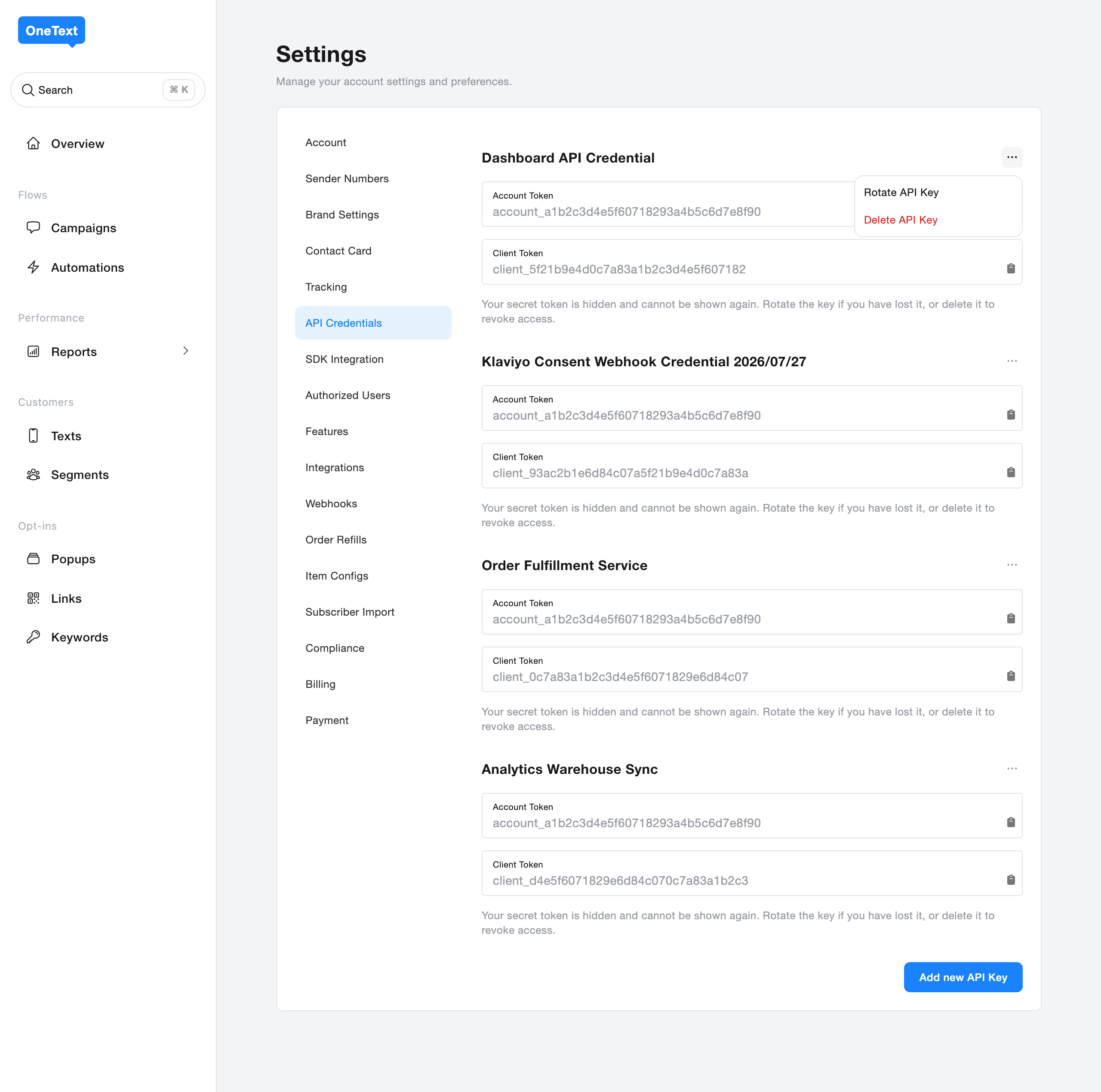
Both actions ask you to confirm first, so there are no surprises.
Naming a new key
Adding a key takes one step. Give it a name and generate it.
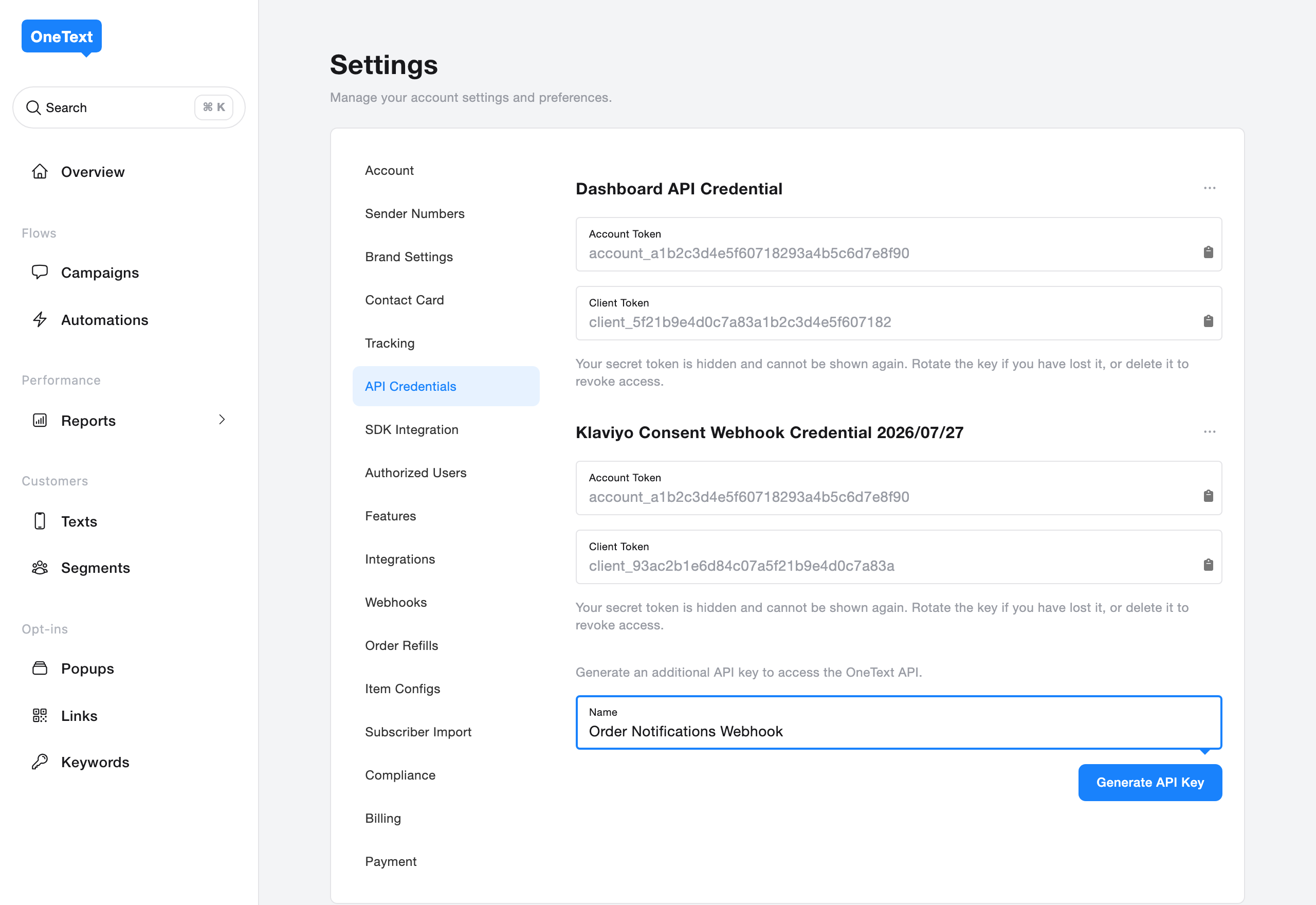
The moment a key is created, we show you its secret once. This is the only time it's ever visible, so copy it and store it somewhere safe before you close the panel. If you lose it, you rotate the key to get a new one. We show the account token, client token, secret, and a ready-to-use authorization header, so you can drop the credentials straight into your integration.
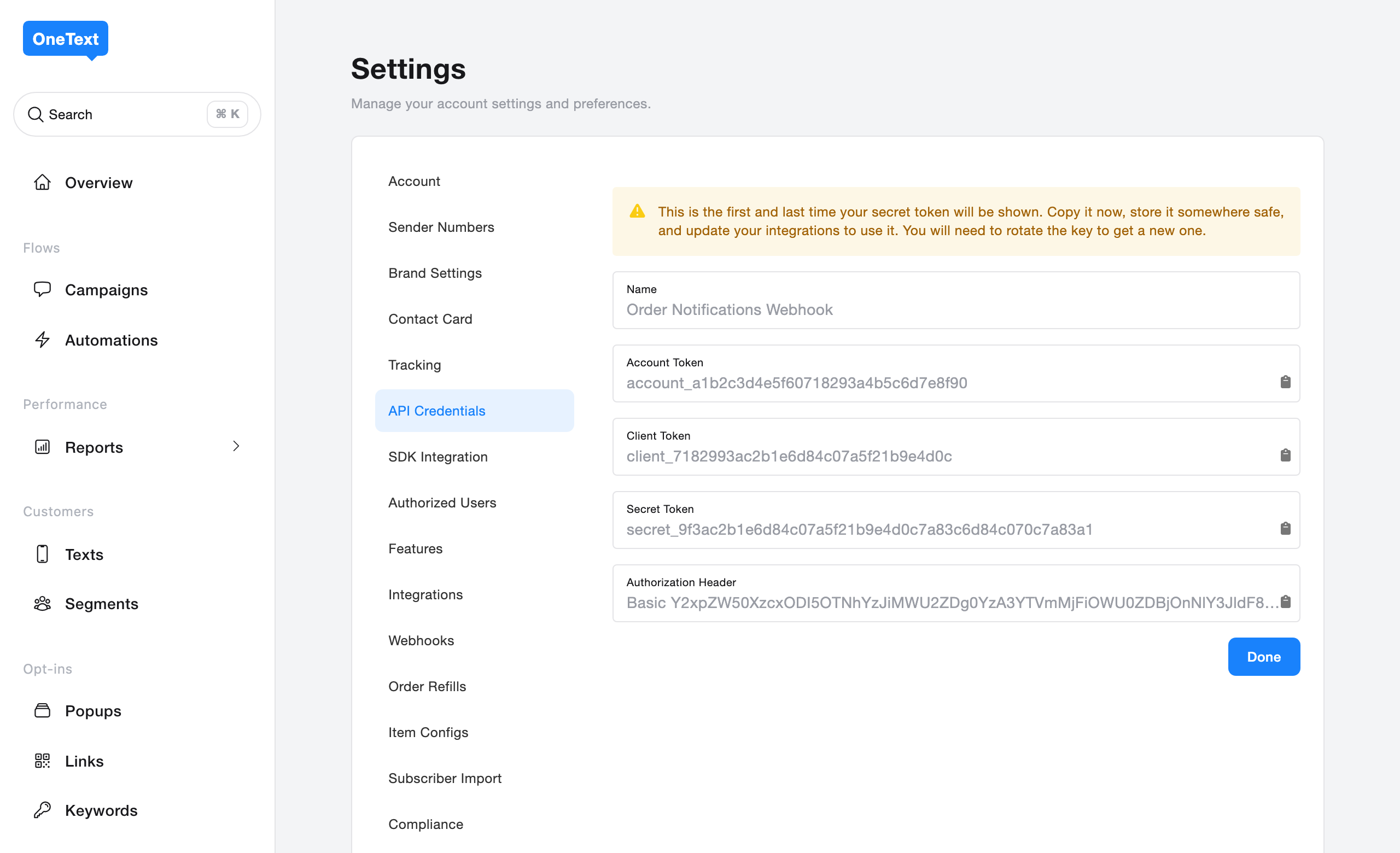
Klaviyo gets its own key automatically
When you connect Klaviyo for consent syncing, OneText now creates a dedicated key just for that connection, named so you can spot it in the list at a glance. You don't have to set anything up, and because it's a separate key, you can rotate or remove the Klaviyo connection without touching the keys your other integrations rely on.
Why it helps
Separate keys make your setup easier to reason about and safer to run. You can see what's connected, hand each tool exactly the access it needs, and change one thing without a ripple through everything else. It's the same idea behind our Webhook step for flows: give developers clean, predictable building blocks to wire OneText into their own systems.
You'll find all of this under Settings → API Credentials. If you already have a key, it's waiting there, and you can start adding more whenever you're ready.
Comments
Join the discussionNo comments yet. Be the first to comment.


